
AP CHEMDUNN | Set Up + FAQ Guide
Table of Contents:
How do I Upgrade to Pro?
How do I get access to the app?
This is important to do in order to have notifications correctly enabled. This is also good for general convenience.
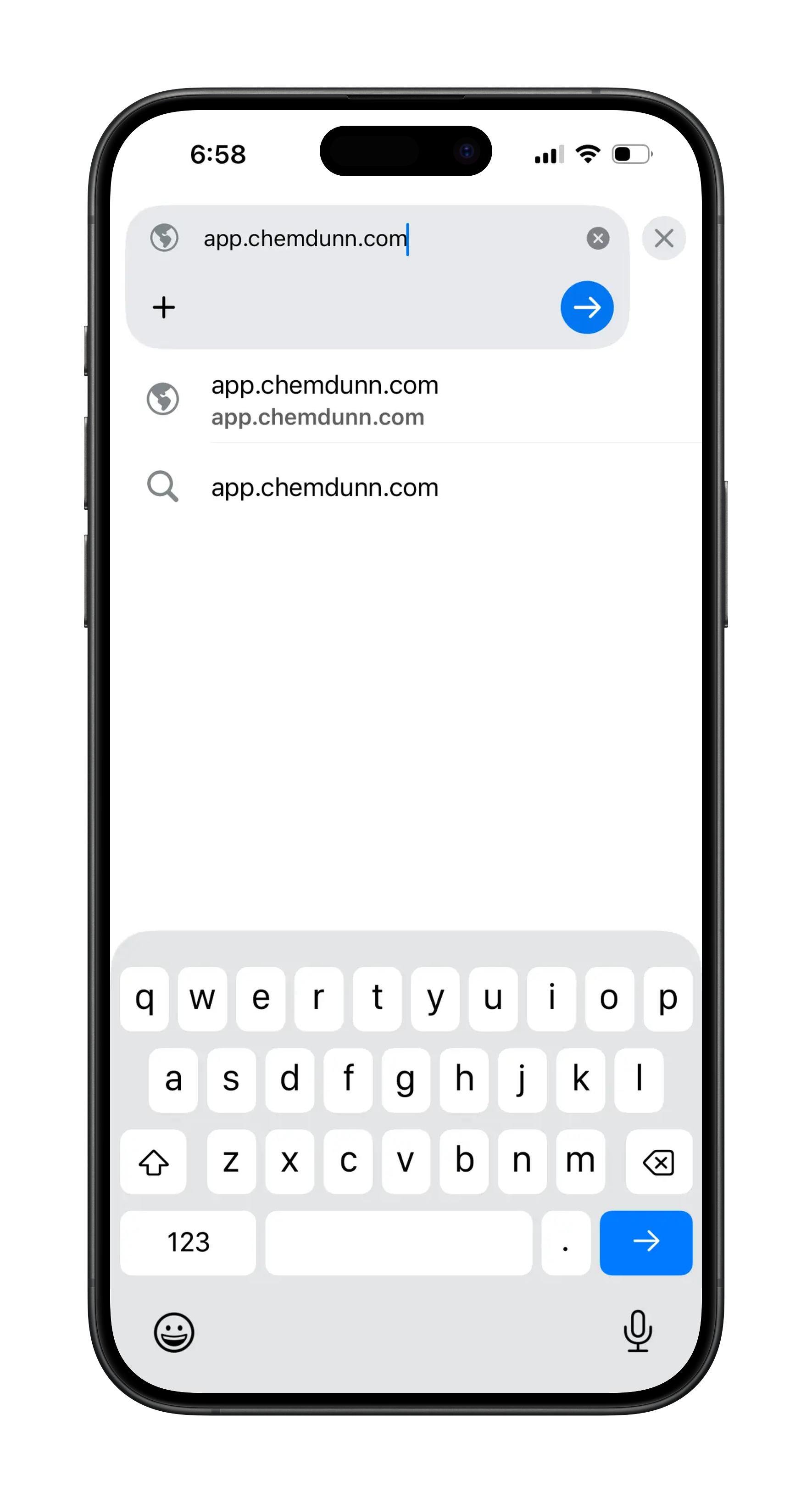
STEP 1
Open Safari, Chrome, or your favorite browser on your phone and go to app.chemdunn.com
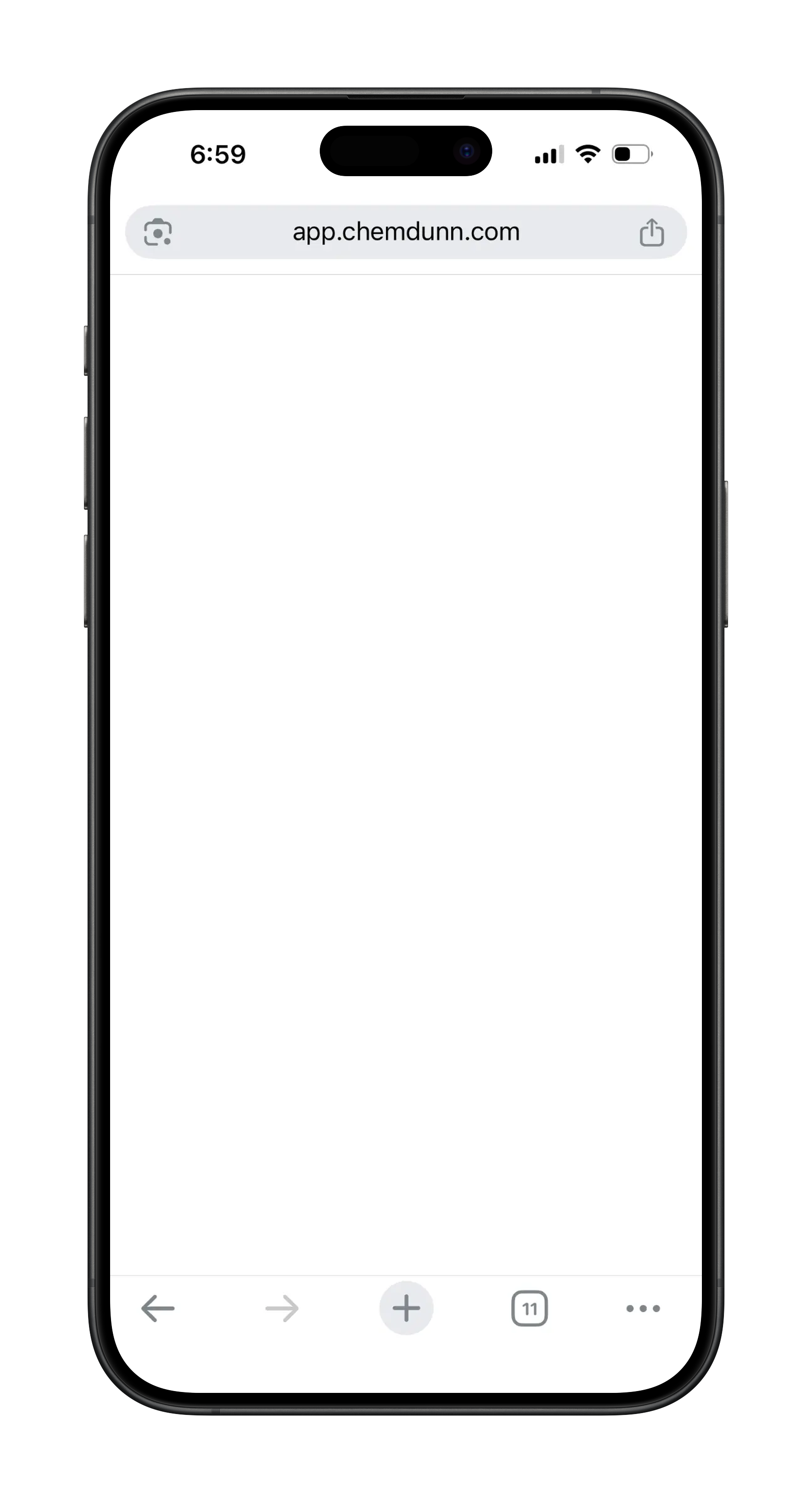
STEP 2
You may or may not see the app directly on the internet browser - that is OK. Next, go to “How do I add to my Home Screen?”
Since this is a web-based app you are also able to access from a computer.

How do I add the app to the Home Screen?
Adding the app to your home screen is highly recommended for convenience. More importantly, it ensures that your notifications are correctly enabled.
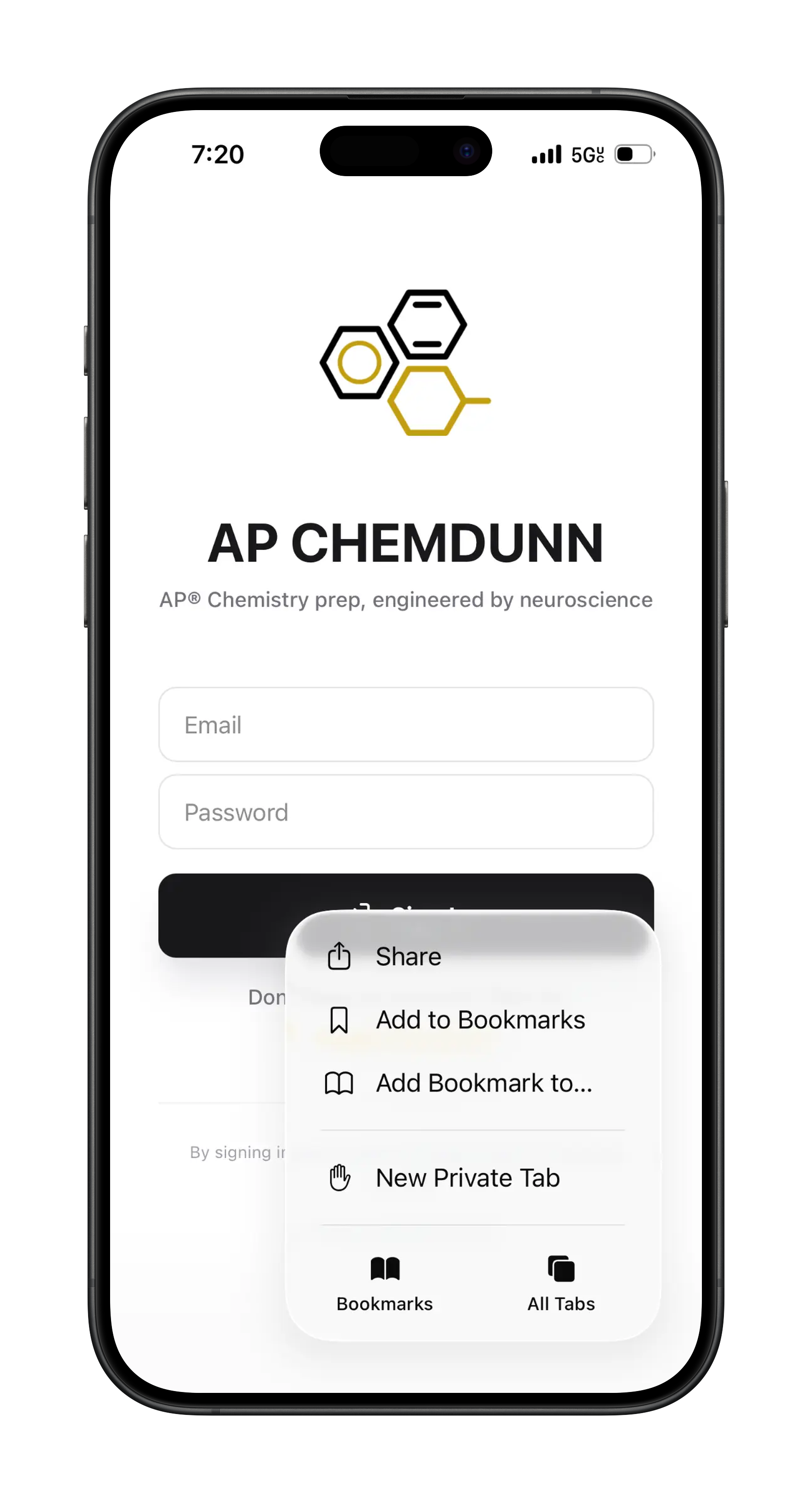
STEP 1
Select the three dots on the bottom right of the screen (not shown in the image above). After selecting, a menu should appear similar to the above (as seen in the image). Click on share.
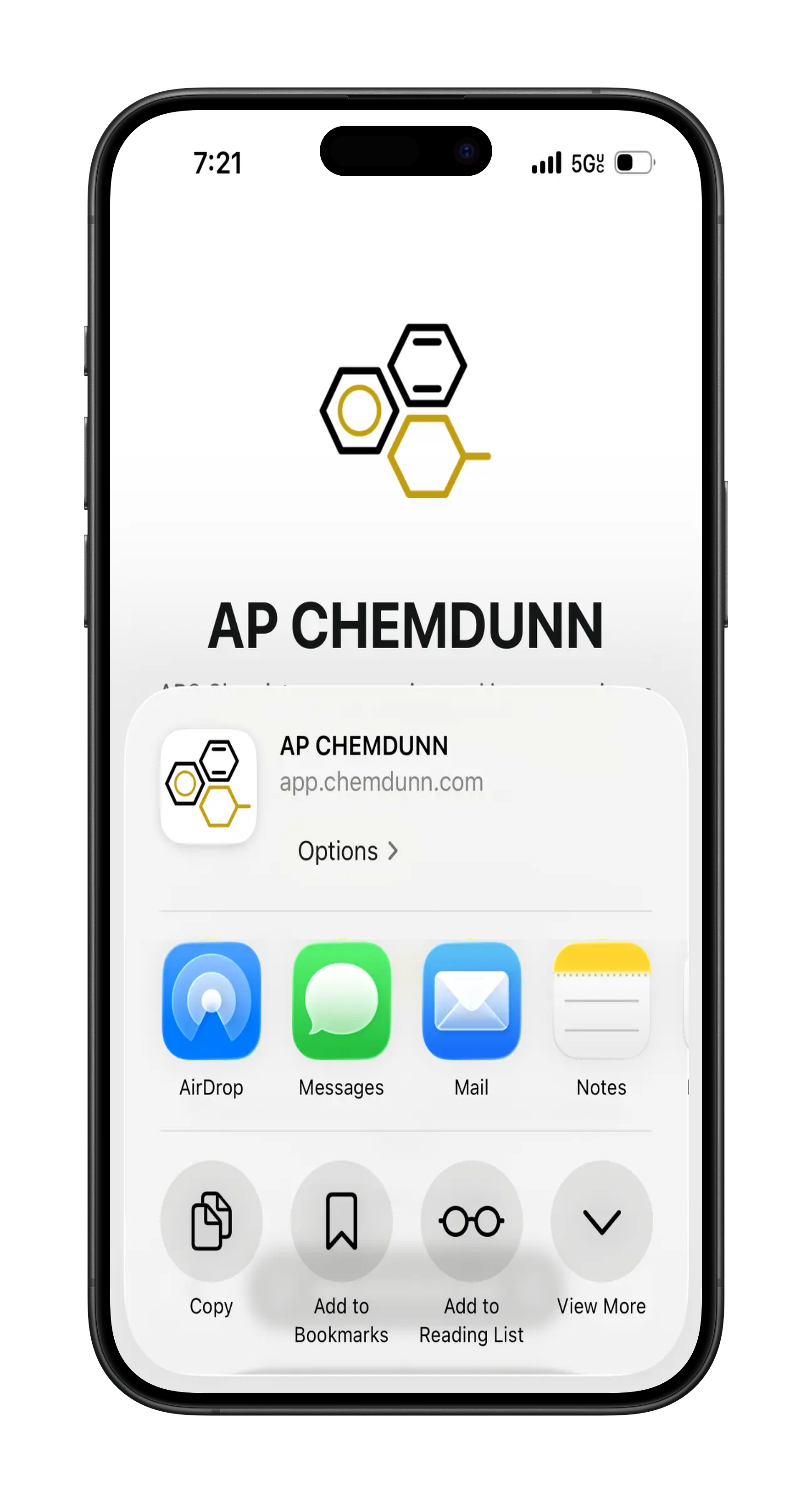
STEP 2
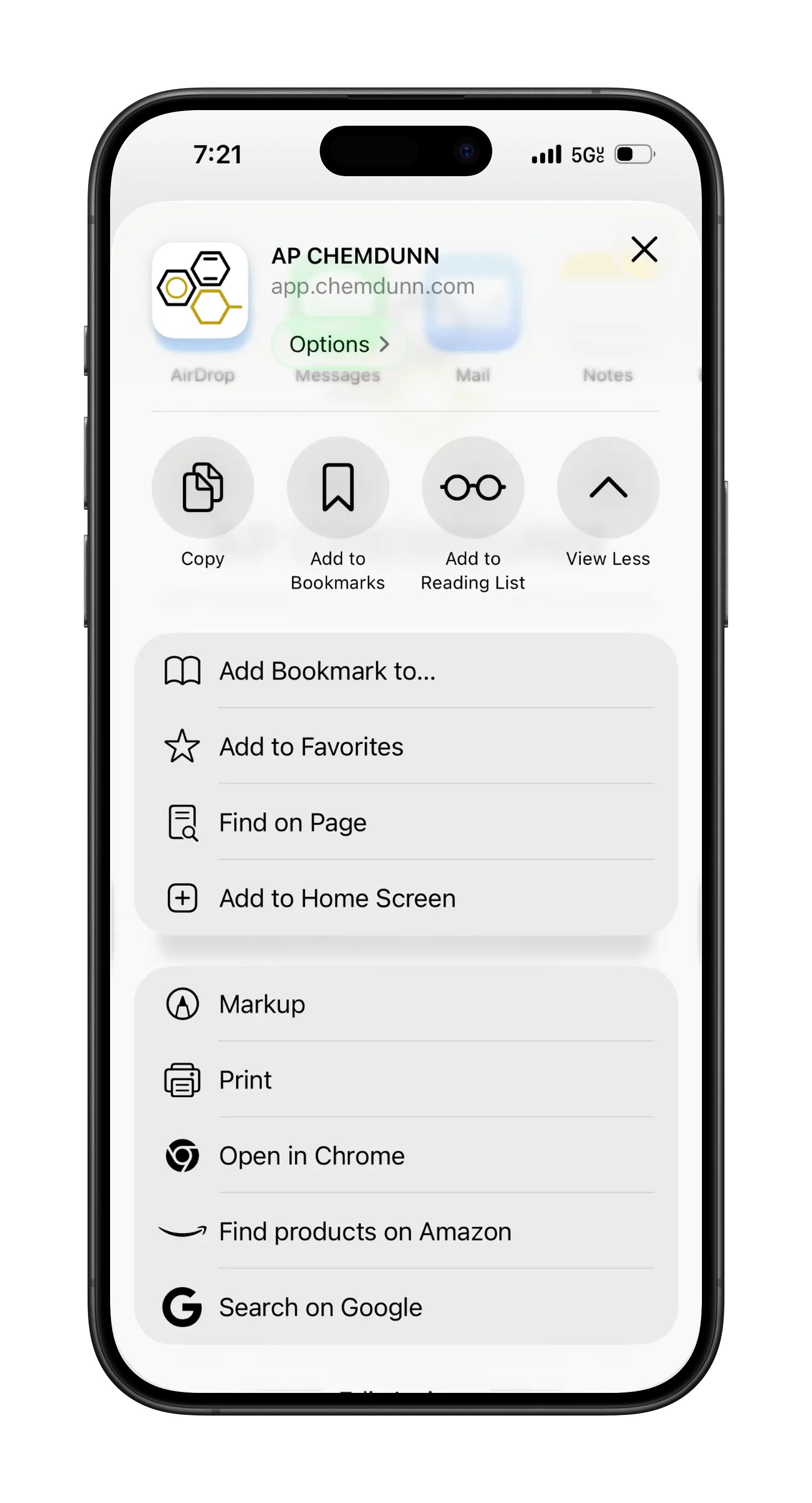
Your screen should look similar to the one above. Select “View more” in the bottom right corner.
STEP 3
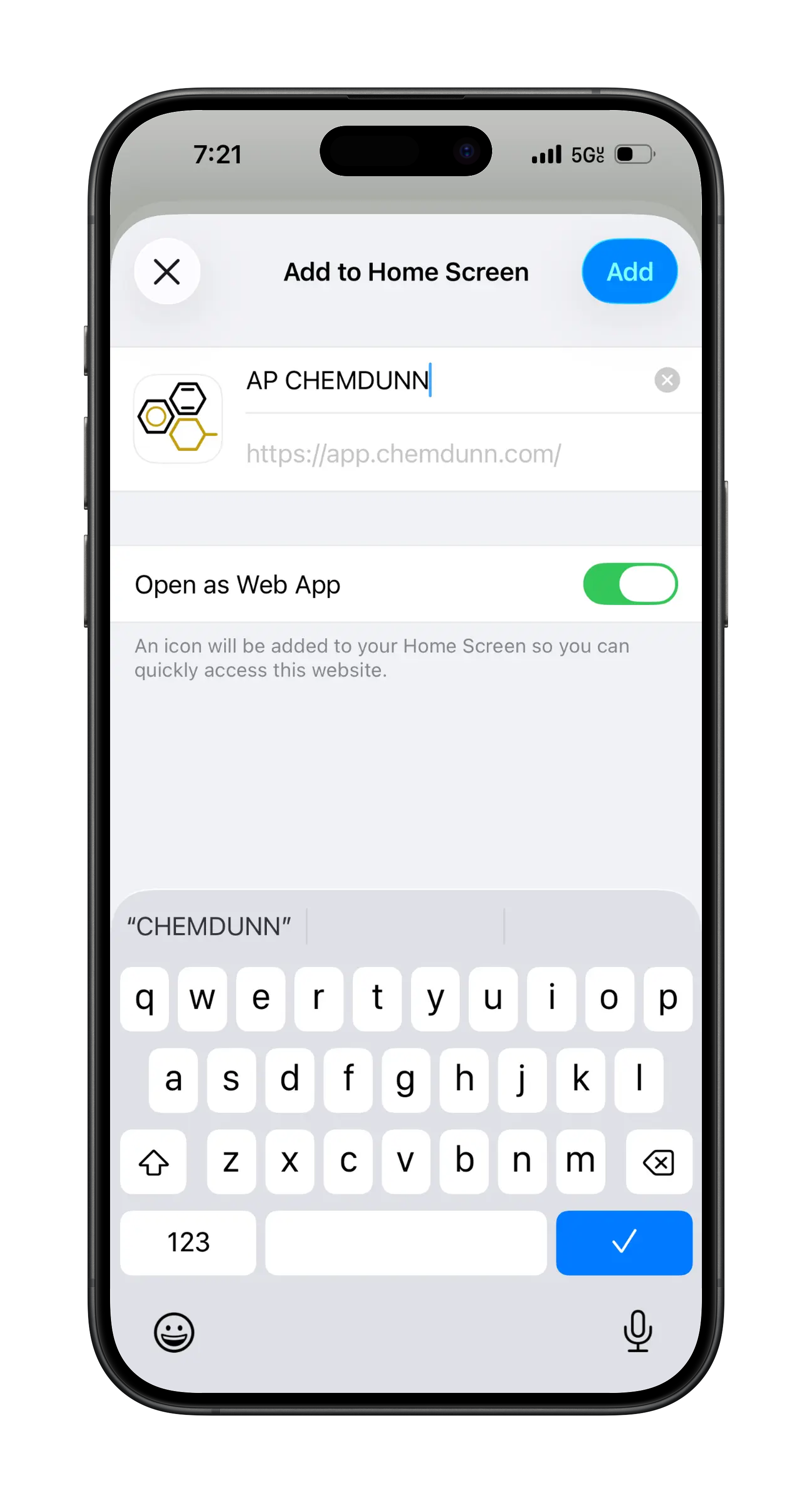
Your screen should look similar to the one above. Select “Add to Home Screen” which is found in the middle of the menu.
STEP 4
Click on the blue button “Add” in the top right. Done! It is now on your home screen like a normal app!
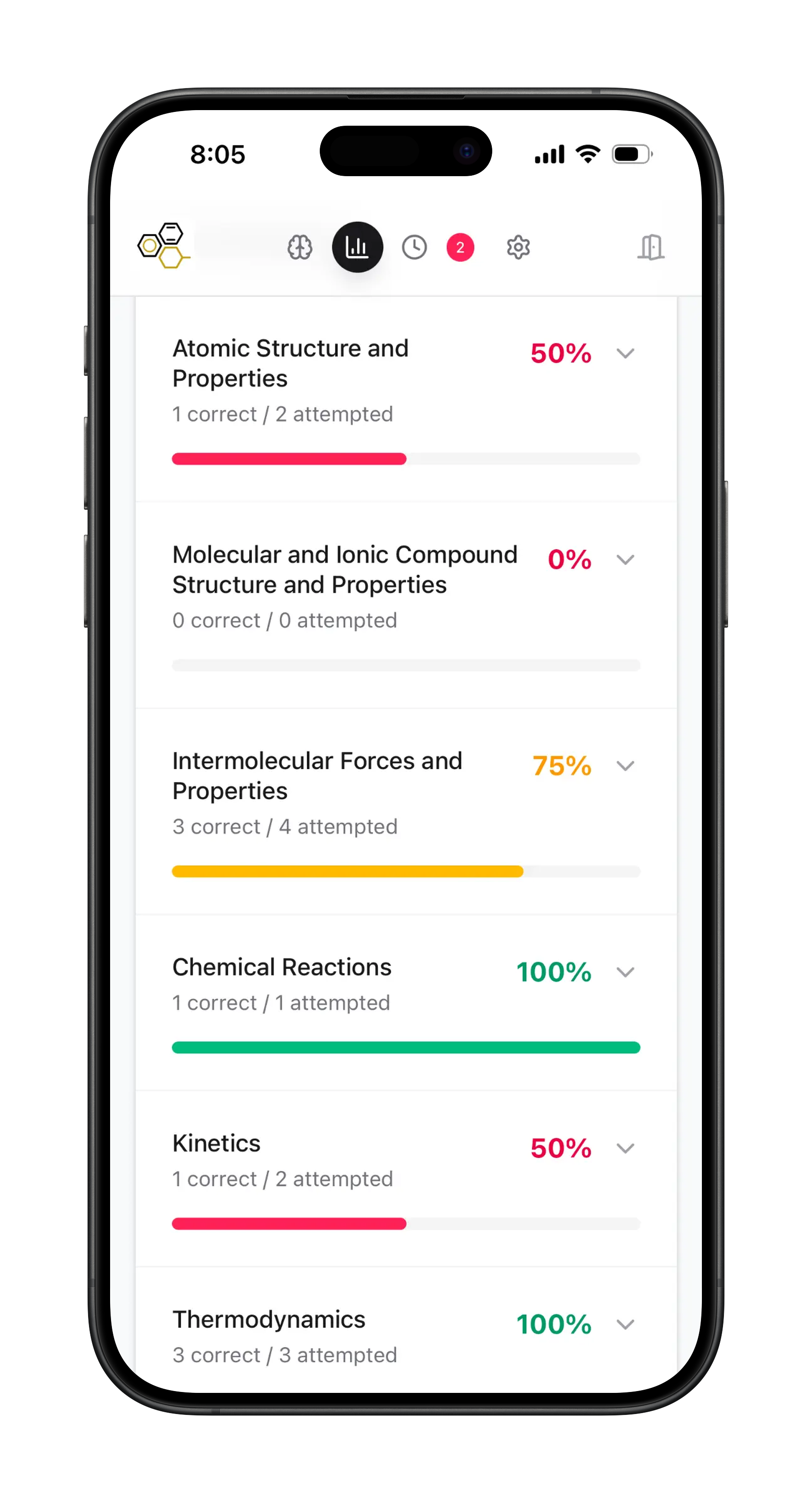
How to use Flagged question?
This is important to do in order to have notifications correctly enabled. This is also good for general convenience.
STEP 1
Select the three dots on the bottom right of the screen (not shown in the image above). After selecting, a menu should appear similar to the above (as seen in the image). Click on share.
STEP 2
Your screen should look similar to the one above. Select “View more” in the bottom right corner.
STEP 3
Your screen should look similar to the one above. Select “Add to Home Screen” which is found in the middle of the menu.
STEP 4
Click on the blue button “Add” in the top right. Done! It is now on your home screen like a normal app!
How do I switch to ‘Scheduled Mode’?
This is important to do in order to have notifications correctly enabled. This is also good for general convenience.
STEP 1
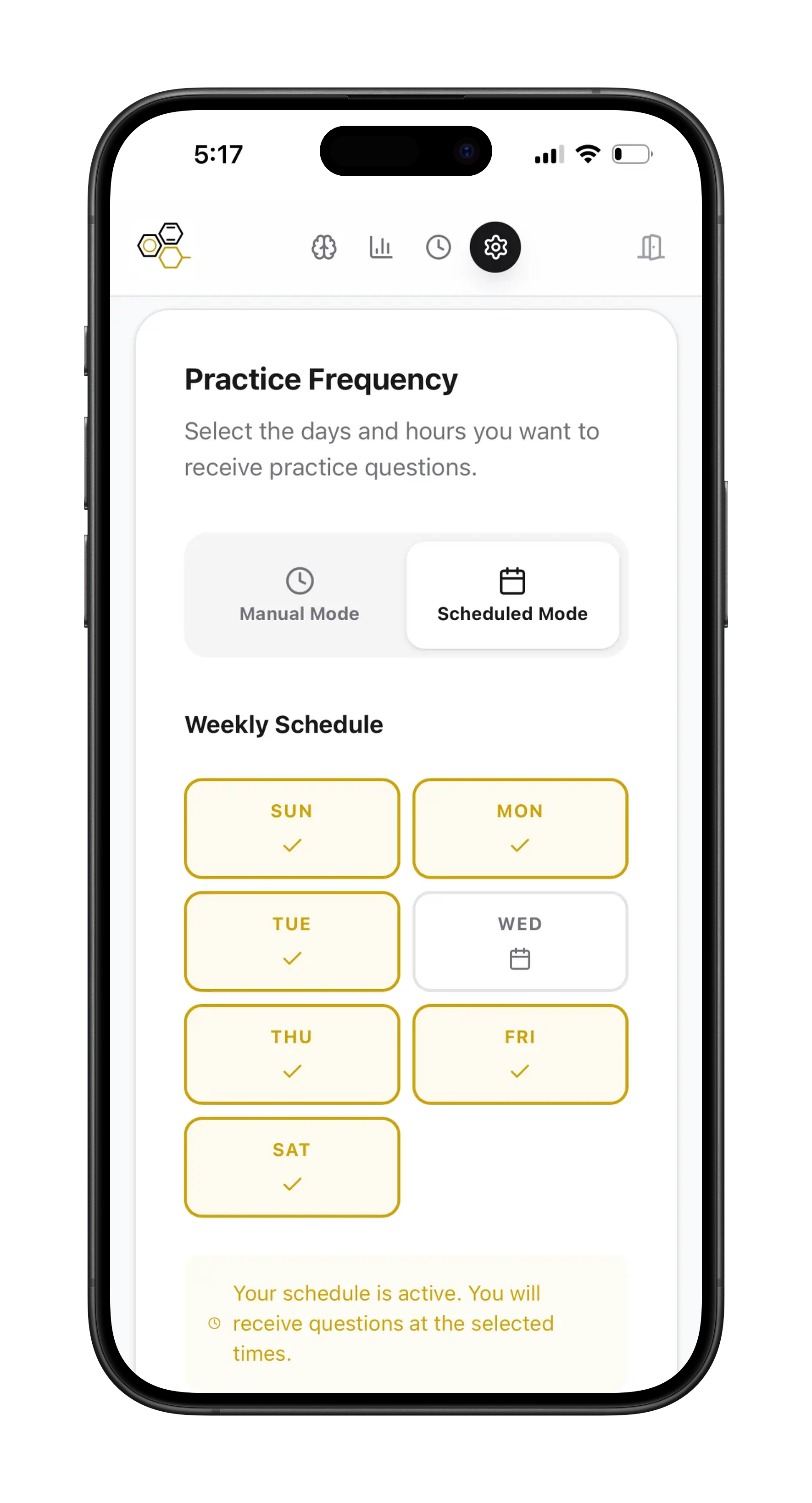
After selecting the gear icon at the top (Settings), scroll down to the Practice Frequency section. Here, you can toggle between ‘Manual Mode’ and ‘Scheduled Mode.’
STEP 2
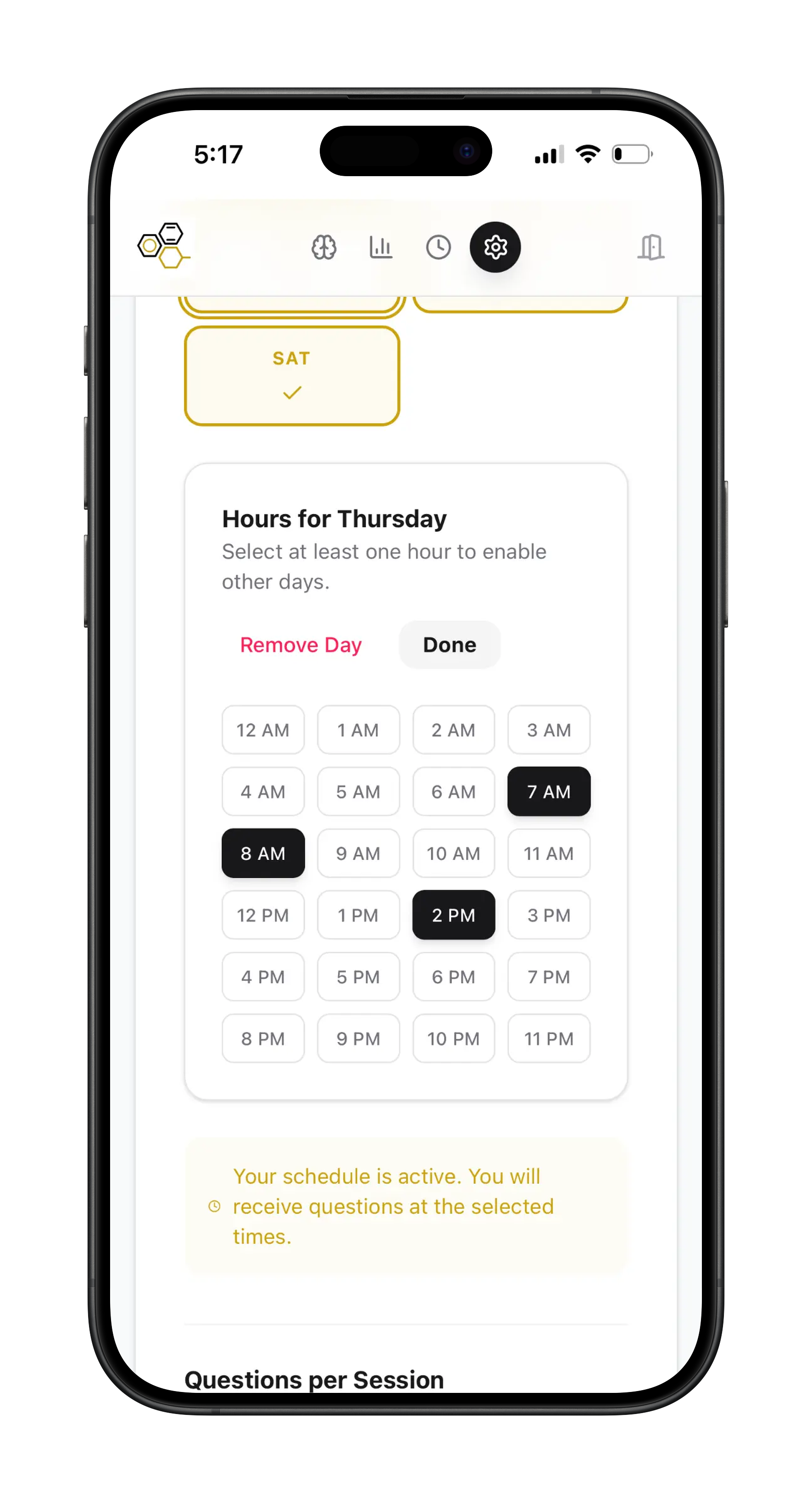
When ‘Scheduled Mode’ is selected the Weekly Schedule is active and editable. Select the day(s) of the week and hour(s) you want a question delivered to you. You will have a 60-min window to answer when scheduled time comes.
STEP 3
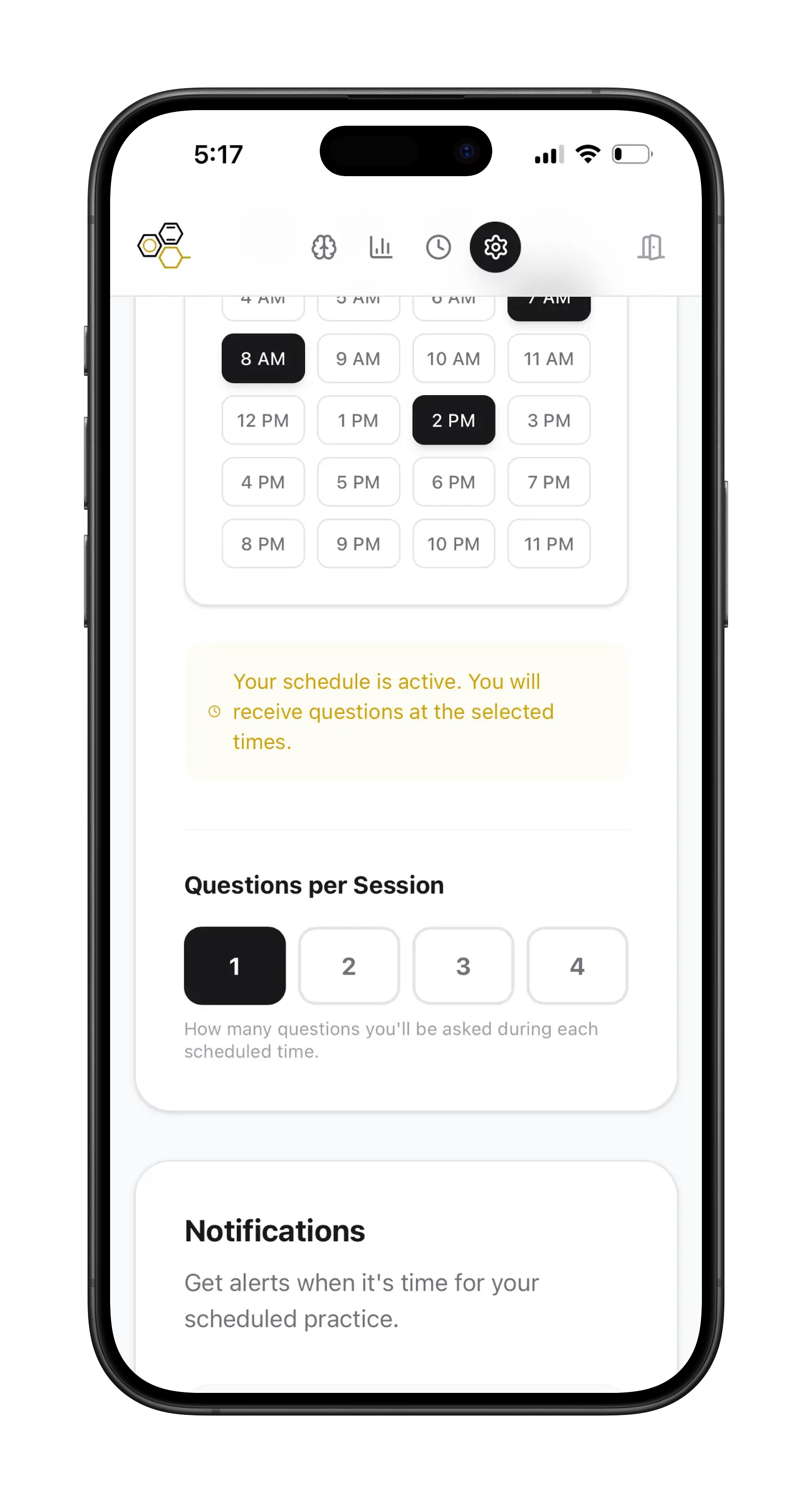
User should also select the number of questions they should be given during each of the scheduled times.
STEP 4
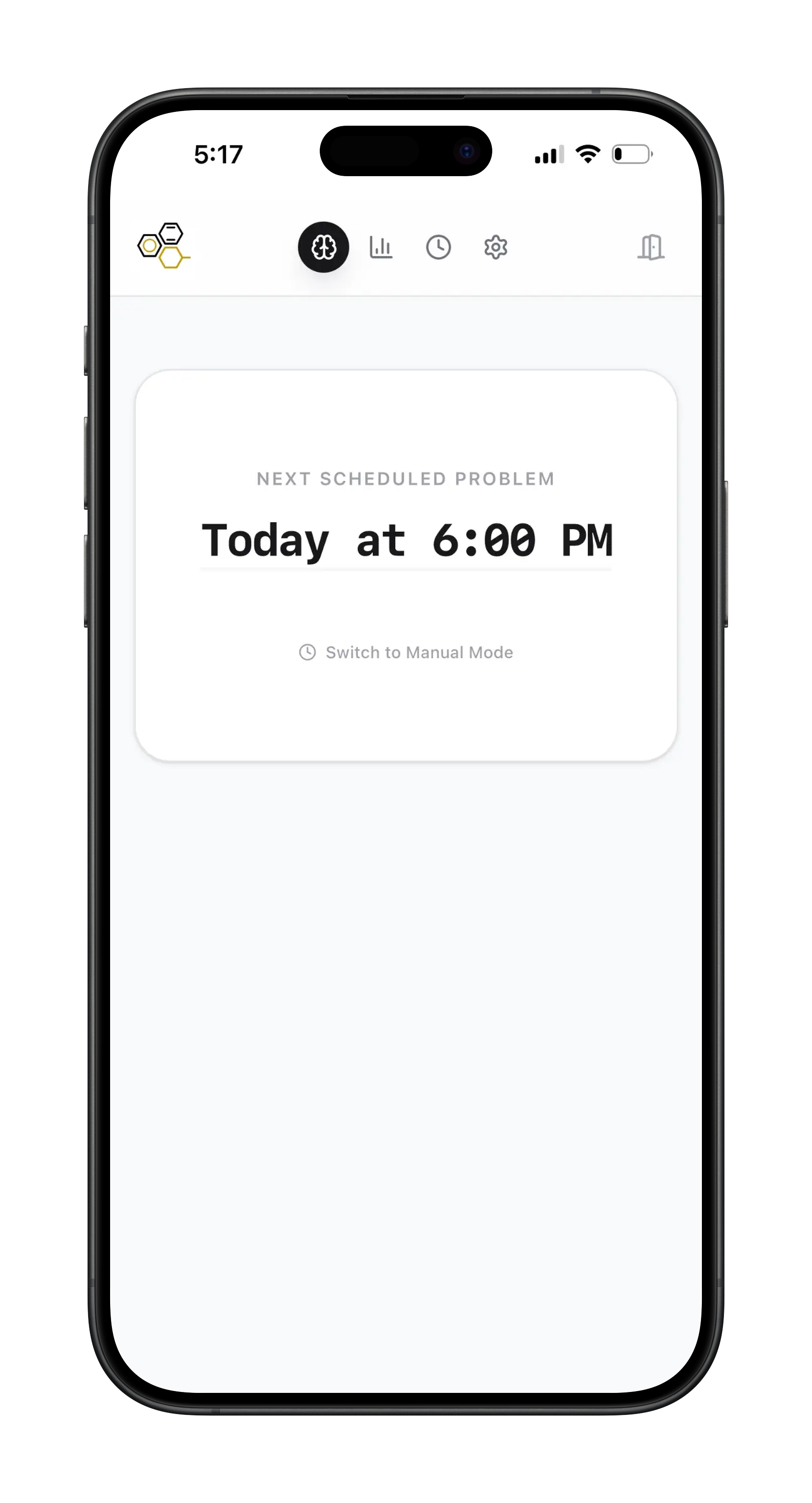
Practice questions will appear on the ‘Practice’ tab at the next scheduled time.